• Từ ngày 01/01/2026 điễn đàn pdaviet đã được sáp nhập, nâng cấp thành diễn đàn Xdo.vn. Bạn vẫn có thể đăng nhập diễn đàn mới với thông tin đăng nhập cũ của bạn. Diễn đàn này sẽ trở thành tàng thư để các thành viên cũ ôn lại. Cảm ơn bạn đã tiếp tục ủng hộ và đồng hành cùng chúng tôi.

Hướng Dẫn Update ROM Cho MPX300!!!

  • Thread starter Thread starter Taki7610
  • Ngày gửi Ngày gửi

Taki7610

Unlock_GSM
Mình hướng dẫn cách update lại ROM cho dòng máy MOTOROLA MPX300 cho các bạn nào bị tình trạng treo máy hay lỗi ROM.

1/Đầu tiên cần có cọng cáp zin moto - Cáp E 398.

2/Bỏ dấu chọn USB trong chương trình Active sync.
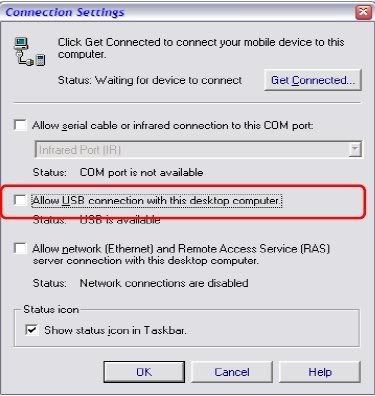

ScreenHunter_003-14.jpg


3/Đầu tiên là cách Sử dụng USB Flash Tool 0.02
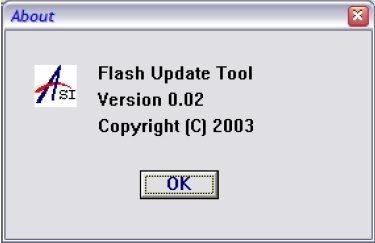

ScreenHunter_001-33.jpg


ScreenHunter_002-26.jpg


*Cho bootloader versions 0.30, sử dụng Flash Update Tool version 0.02.

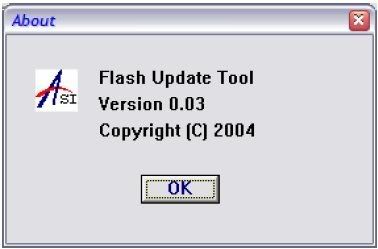
*Cho bootloader version 0.30 sử dụng Flash Update Tool version 0.03.


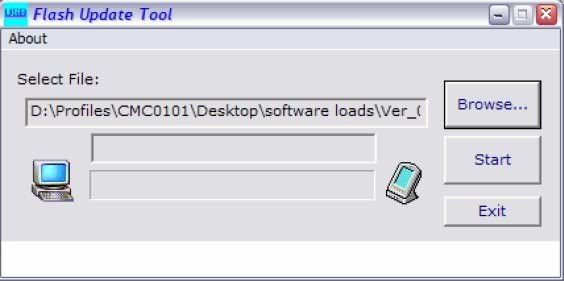
4/Chạy Flash Update Tool 0.02.
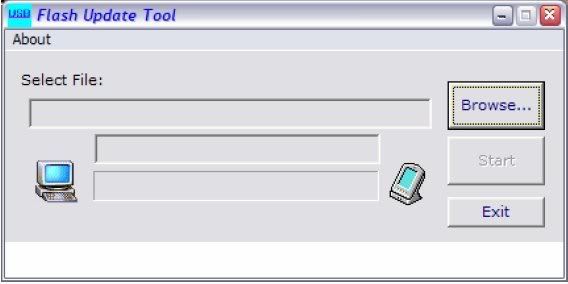
ScreenHunter_004-9.jpg


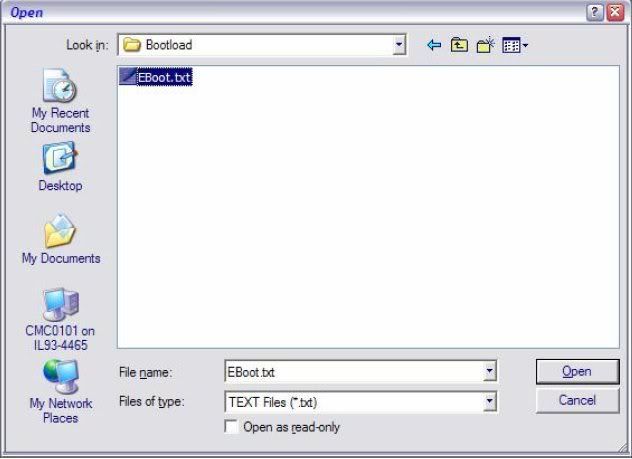
*Chọn đường dẫn tới flash (GSM, eboot, or OS) . Click on “Browse” to start.
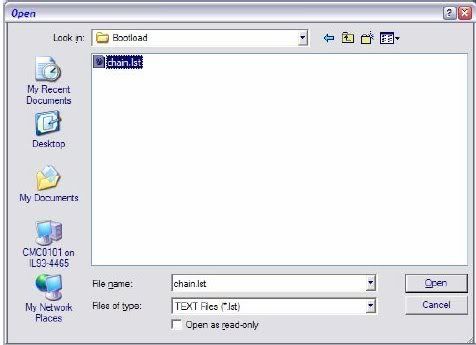
ScreenHunter_005-6.jpg


ScreenHunter_006-4.jpg


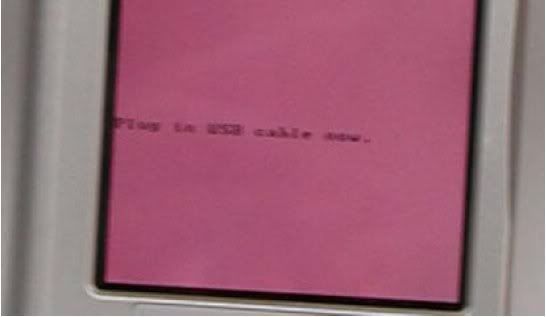
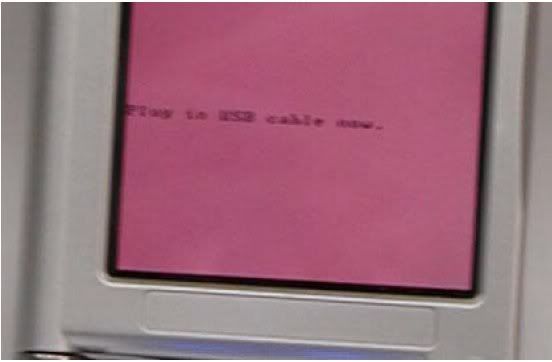
5/Nhấn reset hoặc gỡ và gắn pin trở lại thiết bị ,sau đ1o nhấn phím blue Function<Alt>key. Thiết bị sẽ hiện thông báo “Plug in the USB cable now”.
ScreenHunter_007-3.jpg


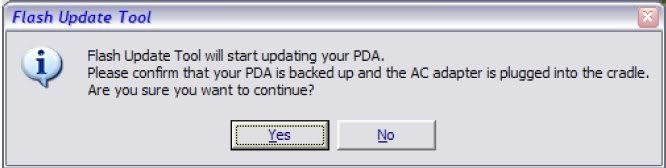
6/Kết nối cáp USB,và nhấn “Start” trong Flash Update Tool window. Confirm that the PDA is ready to be updated.

ScreenHunter_008-2.jpg


7/Thiết bị sẽ tiến hành update và hoàn tất.
 
Sửa lần cuối:
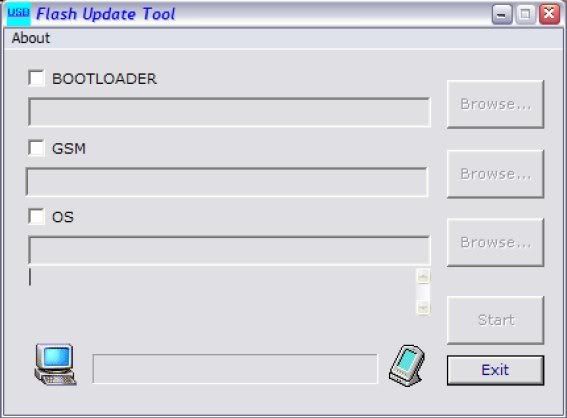
Hướng dẫn cách sử dụng Flash Update Tool version 0.30.

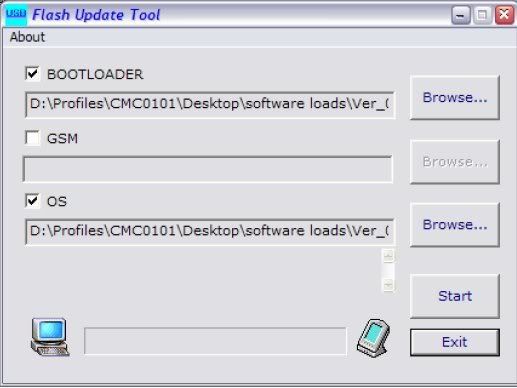
1/Mở chương trình bạn sẽ thấy :


ScreenHunter_009-1.jpg


2/Xem version, “OS.txt”, “eboot.txt” and the “GSM.txt”.

ScreenHunter_010-1.jpg

ScreenHunter_011-1.jpg


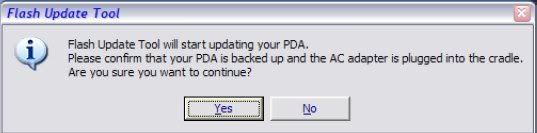
3/Sau khi chọn hết các file bạn nhấn 'YES' để thực hiện.

ScreenHunter_012-1.jpg


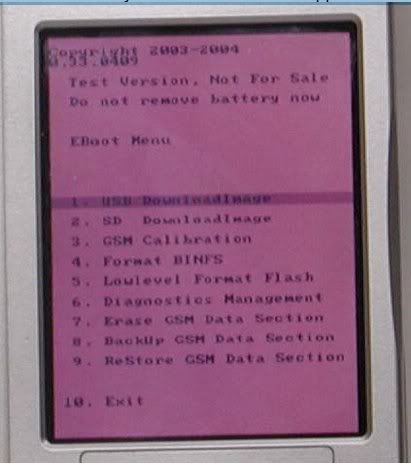
4/Chuyễn thiết bị vào chế độ Boot - Nhấn reset hoặc tháo pin và gắn lại,giữ nút blue funiction<Alt>,màn hình Boot sẽ hiện ra.


ScreenHunter_013-1.jpg


5/Chọn "USB DownloadImage” .

ScreenHunter_014-1.jpg


6/The “Plug in…” message sẽ hiện tr6n PDA. Kết nối cáp USB - Nhấn "YES" để quá trình thực hiện.

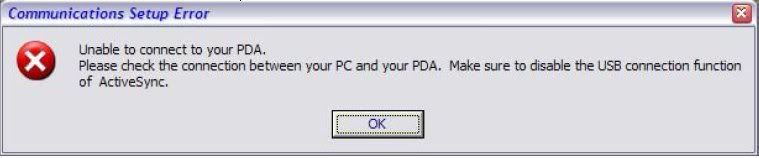
*Nếu bạn để chế độ mở USB trong Active sync,bạn sẽ gặp thông báo lỗi .


ScreenHunter_015-1.jpg


*Refer to the device flash process section (next).

7/Device Flash Update indicators.

*Khi thiết bị update ,sẽ có hiện thông báo.
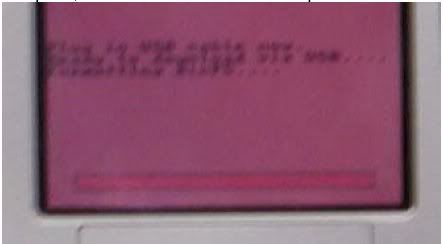
1. Red status bar – This indicator means that the device is clearing existing flash memory. When
complete, it will continue to the next step.


ScreenHunter_016-1.jpg


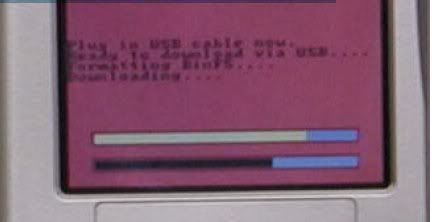
2.Quá trình update hiện thị trên màn hình :
Dual status bar – This can be either a one or two-bar indicator with yellow and black colors. It
represents download progress of data files.


ScreenHunter_017.jpg


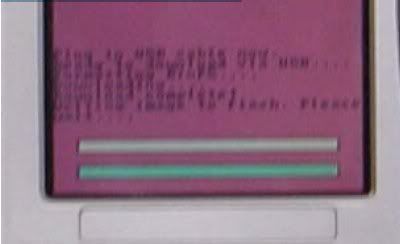
3.Tiếp tục :
Green status bar – This indicates that the download has completed and the flashing of the ROM is
occurring.
When this indicator is on, the device can be removed from the USB cable so that the Flash Update
Tool can begin another device.


ScreenHunter_018.jpg


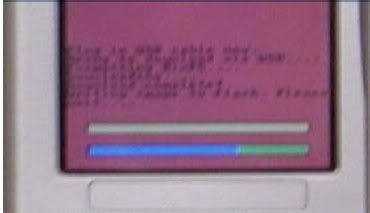
4.Giai đoạn cuối cùng :


Blue status bar – This indicator, when a complete bar, means that the device ROM has been
completely flashed and the device can be rebooted at this time. The device may reboot on its own.


ScreenHunter_019.jpg


GoodLuck!!!


Link Tải
 
Sửa lần cuối:
Back
Top